HONEST DIGITAL ADVICE

Why you should use Visual Studio Code

QUICK VIEW

Why Visual Studio Code:

  • It’s free
  • It integrates code, git, a terminal and source code management
  • It looks cool while you’re programming
  • It features countless extensions that help you become a better programmer


Prerequisites

  • Python 3.x installed
  • git installed

Here’s why and how you should switch to Visual Studio Code.

Visual Studio Code is everything you need

I suppose you’re not a professional developer. You’re asking yourself how at least you can maintain a few standards of good coding and how the hell you can make your life a bit easier while stressing out about all your bugs.

Visual Studio code provides you with a great all-in-one toolbox that will significantly speed up your coding and even help you become a better programmer.

To be clear: I’m not talking about NSA-Grade hacking or Netflix-like cloud software that will make you millions. I’m talking about poor little you sitting in front of your PC wondering how on earth to start when your last new years resolution was finally learning a useful skill (coding obviously).

Installing Visual Studio Code

Installation is pretty easy and pretty much straight forward. If you’re smart you’ll probably just want to google “Download Visual Studio Code” and find the right link at Microsofts download page or store. Our you can try and hope that this link still works at the time you’re reading this.


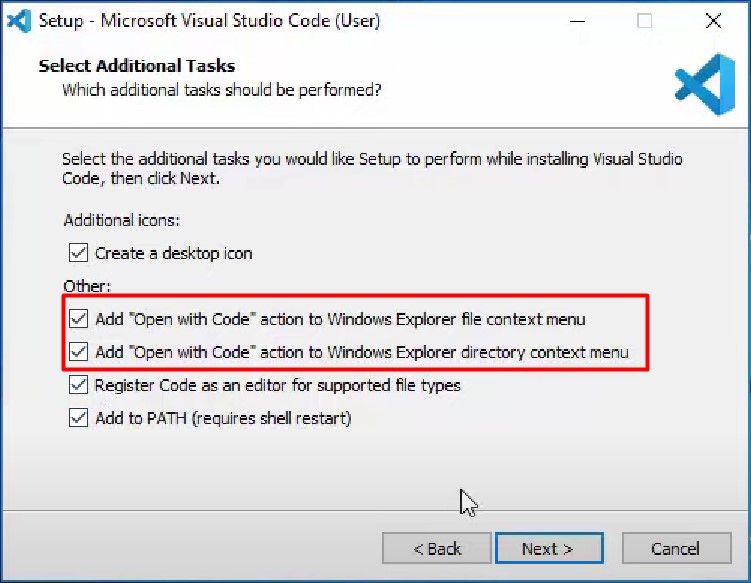
While installing you’ll be asked if you want to add “Open with Code” to your file and folder Explorer context menus (because you’re asking yourself: this is when you right click on something).

I highly recommend you select BOTH options because it will make your life way easier when you’re hopefully working in projects that contain more than one file in the future. The other decisions you can make yourself during installation.

I encourage you to always work in folders and (as you can read in my other How To’s on Python) in Virtual Environments and git. This always makes it necessary work with 1 FOLDER = 1 CODING PROJECT.

The more projects you have, the more you will appreciate opening the whole project with one click.

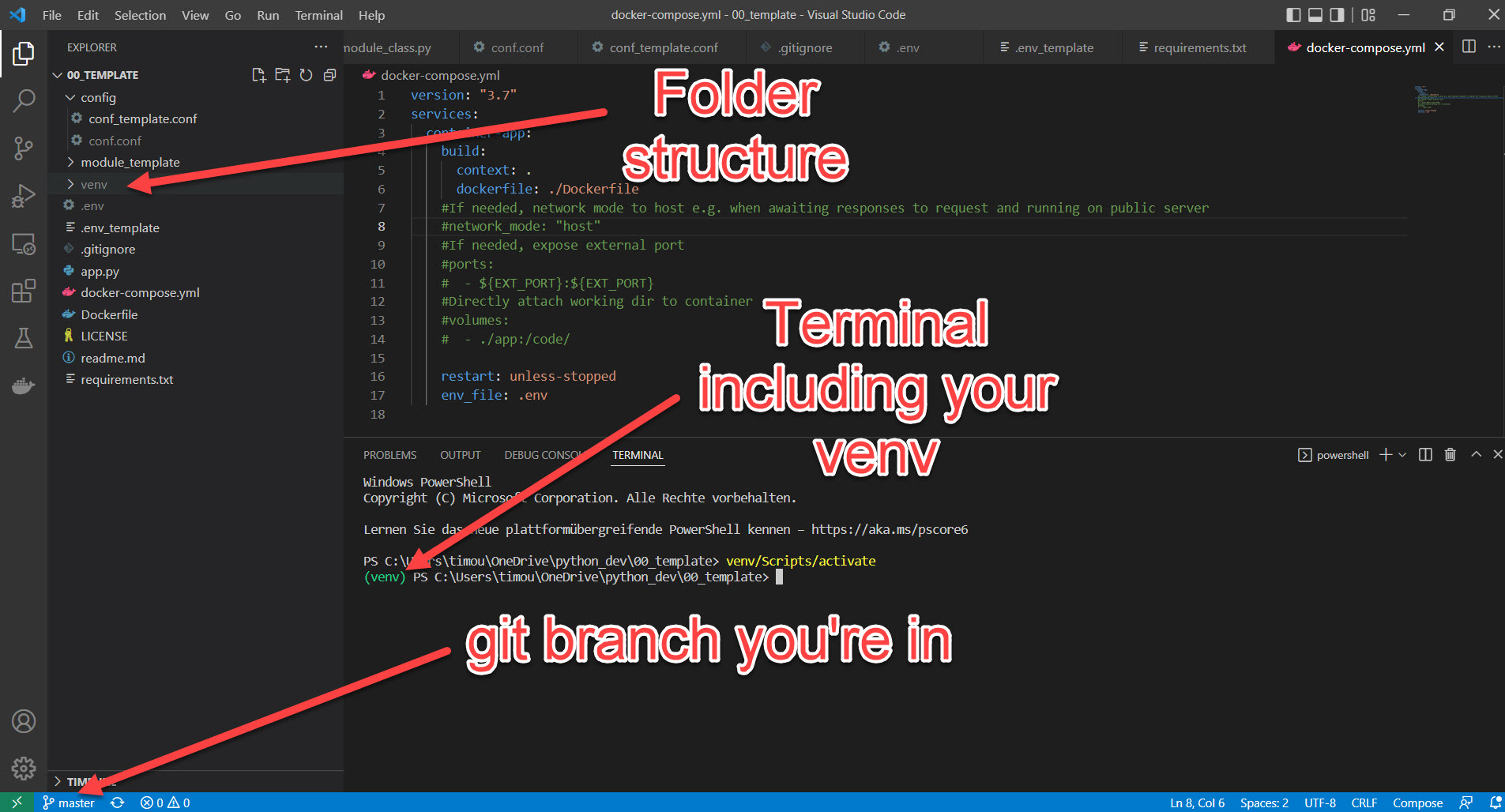
Everything at one glance

If you’re trying toalways have your shit together while coding, you will work with the

  • Terminal
  • git (or another source code management)
  • Your coding files within a folder structure (Packages in Python)
  • And maybe a debugger


VS Code with the right extensions can provide you with everything in one screen. No need to jump from window to window or terminal to terminal.

Visual Studio Code with Extensions

VSCode is perfect in supporting you while programming. There are a lot of extensions which can be clustered in mainly 3 areas

  • Auto-complete extensions (for all languages)
  • Documentation extensions (helping you to write perfect Docstrings and stopping you from any ort of #blablabla bullshit)
  • Code improvement extensions

Here are a couple of examples that I use in my daily coding:

  • Python & Pylance (as language server for Python, nice in-code visuals and autocomplete functionality)
  • Remote – SSH (remote development on my Linux vServer)
  • PHP DocBlocker (Auto generate Docstrings for your functions)
  • autoDocstring (Python)
  • Kite AutoComplete AI
  • WordPress Code Snippets
  • Docker (perfect for improving your Dockerfiles)
  • SonarLint (to check your code-quality)

Sample usage with a Python Hello World

If you’ve installed Python, git and Visual Studio code on your computer you can follow along this simple example so you finally can start working on your multi-package AI trading bot.

The following screenshots show you how you set up a sample Project with a Virtual Environment from scratch with VS Code in below one minute (maybe not if you’re doing it the first time …)

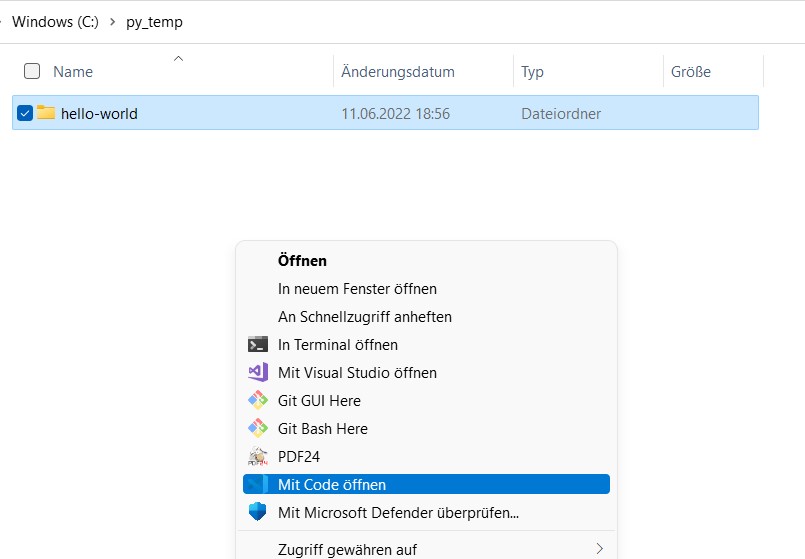
Create an empty folder and right click, then "Open with Code"
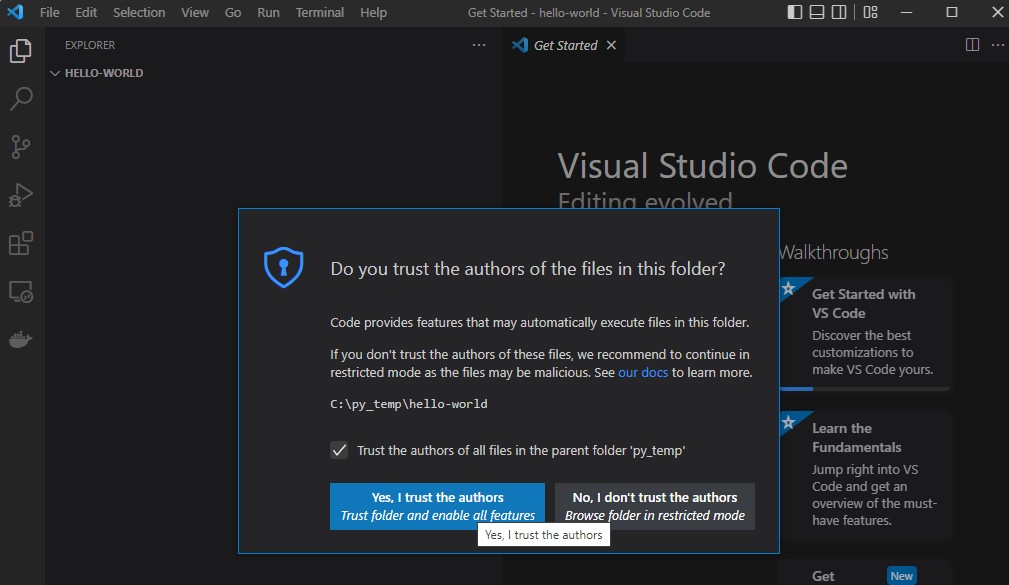
Yup, you've created it, I suppose you trust the author
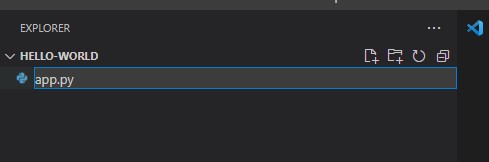
Create your app.py or whatever you want to call it
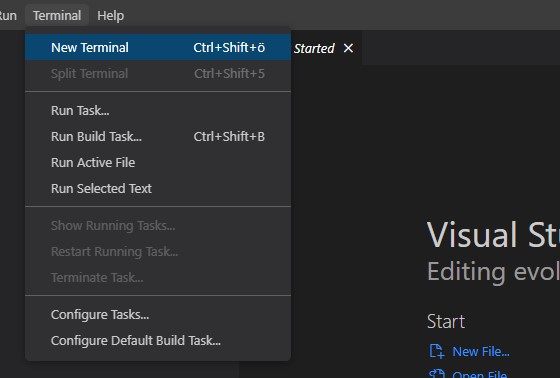
Open a terminal
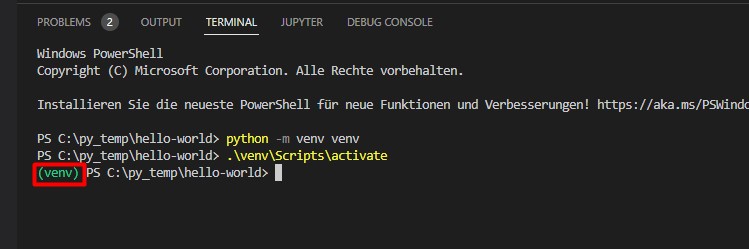
Type the following commands (in this order!) to first create a virtual environment and then activate it. You should see the green (venv) before every line now indicating your venv is working.
				
					python -m venv venv
or python3 -m venv venv

venv/Scripts/activate (on Windows)
source venv/bin/activate (on Linux)
				
			
Create a file called requirements.txt and type any Python package that comes to your mind (I chose "requests")
Install the listed requirements from your file into your virtual environment
				
					pip install -r requirements.txt
				
			
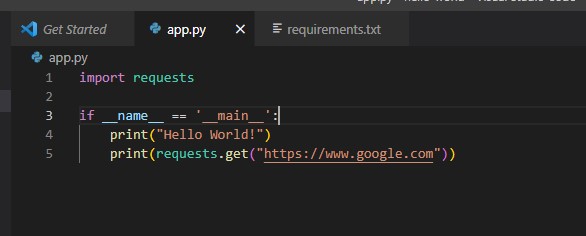
Here's my sample Hello World code including the external package from my requirements.txt, confirming the virtual environment is working
				
					import requests

if __name__ == '__main__':
    print("Hello World!")
    print(requests.get("https://www.google.com"))


Execute, … Boom! Done.

You now have code, running in an virtual environment, in Visual Studio Code. This method allows you to program a bit more sustainable as you have your

  • External dependencies sorted out
  • Don’t mess up your local Python installation by using a Virtual Environment
  • Have easy access to all your relevant coding information on one screen

Add your Source Code Management

Honestly, it’s not that hard. And it can save your ass. Source Code Management is extremely crucial for larger projects where multiple (actual) programmers work together on code. It allows to review code before going live, people working on multiple branches at the same time and others reverting some really bad commits that a drunkard made last weekend. Everything without fear of losing track of what was working and what not.

For you, git and GitHub will just be a safe place to store your versioned code. You can always turn back changes you made to a specific date or commit and even encourages you to try out more and take some higher risks when developing (because you can always turn back, right?)

Start by creating an account on GitHub and download git on your computer.

https://git-scm.com/downloads

https://github.com/join

Then go ahead and in your working directory of your frist Python app execute following code:

				
					git init


Boom, that created a .git folder in your folder which is your repositoriy (repo) and will from now on track all the weird changed you commit (ah by the way, DO NOT HARDCODE ANY PASSWORDS into your code and commit them – just a friendly hint 🙂 ).

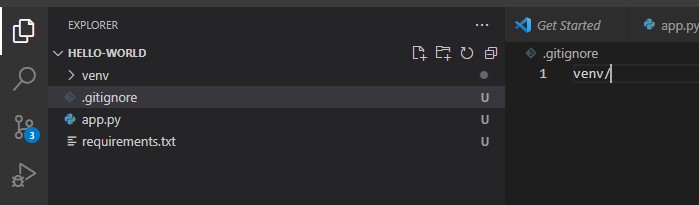
Because we’re also holding a venv folder, we should also create a .gitignore file which tells git to ignore certain folders. The file content can look as simple as this:

The venv folder could contain thousands of single files depending on the packages you install. So you do not want to have them in your private repo.

				
					git status
git add .
git commit -m "this is my first commit"
git remote add origin ssh://your-git-repo-address


Alternatively you can use the GIT Extension of VS Code which makes typing in the terminal almost unnecessary.

GitHub and your code

If you’re registered on GitHub now, you can also add your remote repository. First, I’d recommend you to setup an SSH-Key pair with your private computer and your GitHub account. Here are the docs on how to do that:

https://docs.github.com/en/authentication/connecting-to-github-with-ssh

This will dramatically ease your life and make your connection even safer. Set up single SSH-Key pairs for every machine you plan to work from.

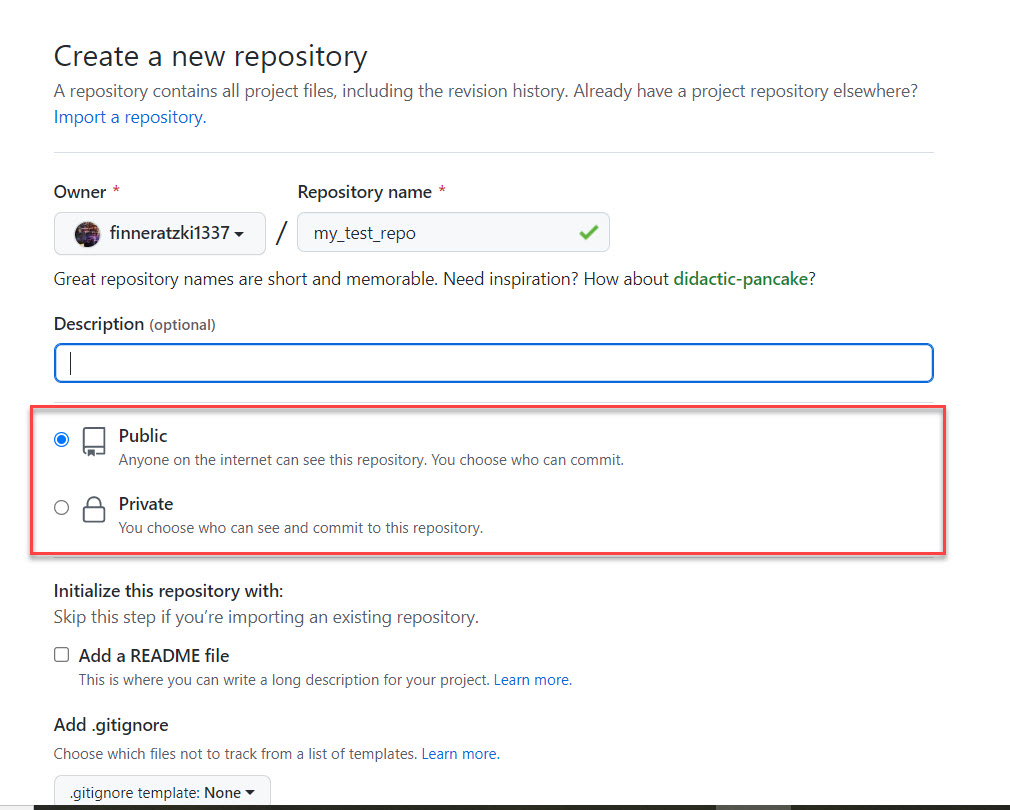
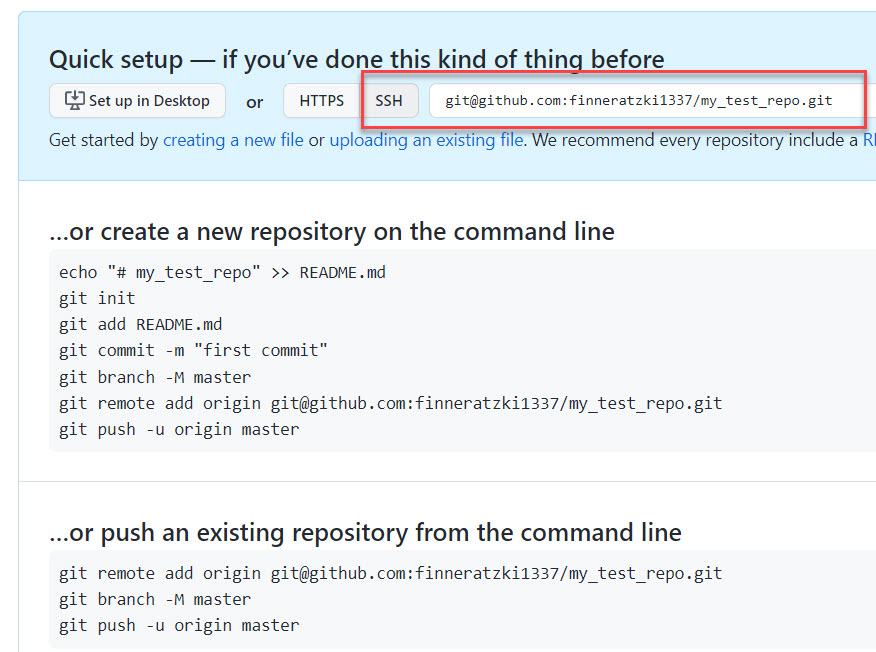
If ready, go to GitHub, create you first online repo and  copy paste the SSH address from your new repos page. Pay attention to the Public/Private setting. Also you don’t need GitHub to add any files.

Then go to your local repo and add the remote one as “origin”. Pushing you repo into “origin” will sync your local developments with the cloud repo at GitHub.

				
					git remote add origin ssh://your-git-repo-address
git push origin master


Et voilá, now you have a local and online repo that you can sync as you like. If you plan to further develop your repo you would normally start with cloning your online repo into a new folder on your computer, setup the venv with your requirements.txt, improve the code and then git push origin master your changes back to GitHub.